





Best Of
Re: Can I use my Acer Aspire ES1-512-C5YW HDD as external storage?
You're welcome, please let us know if there's any news.

Re: PH18-73 RAM Speed only 4400, tried different slots or just using one stick and it's always 4400.
Thanks @eGomes - unfortumately, there is no difference wiith the RAM issues on this BIOS update

Re: Can I use my Acer Aspire ES1-512-C5YW HDD as external storage?
Thanks a lot for your help Alejandro, it is very much appreciated.
No, I will not be putting a new drive into the computer.
Best wishes,
John

Re: Will I have the same WiFi driver issues with Pop!_OS on Acer Extensa 255 as I did with Ubuntu?
Yes, Pop_OS! does tend to cause issues with many systems, mostly because it disables the timeout to press a key to enter the BIOS. Likely Ubuntu will have full support, but they often take around a year before they have all the drivers up. I don't find any references to an Extensa 255 model, so I don't know what you actually have. What does Windows tell you about the WiFi adapter? Those are usually one of the first things supported.
 billsey
Re: Is it possible to push A515-45 beyond 24GB RAM & 2TB Storage/slot?
Hi Dignitas
Acer Aspire 5 A515‑45 — RAM & SSD Upgrade Guide
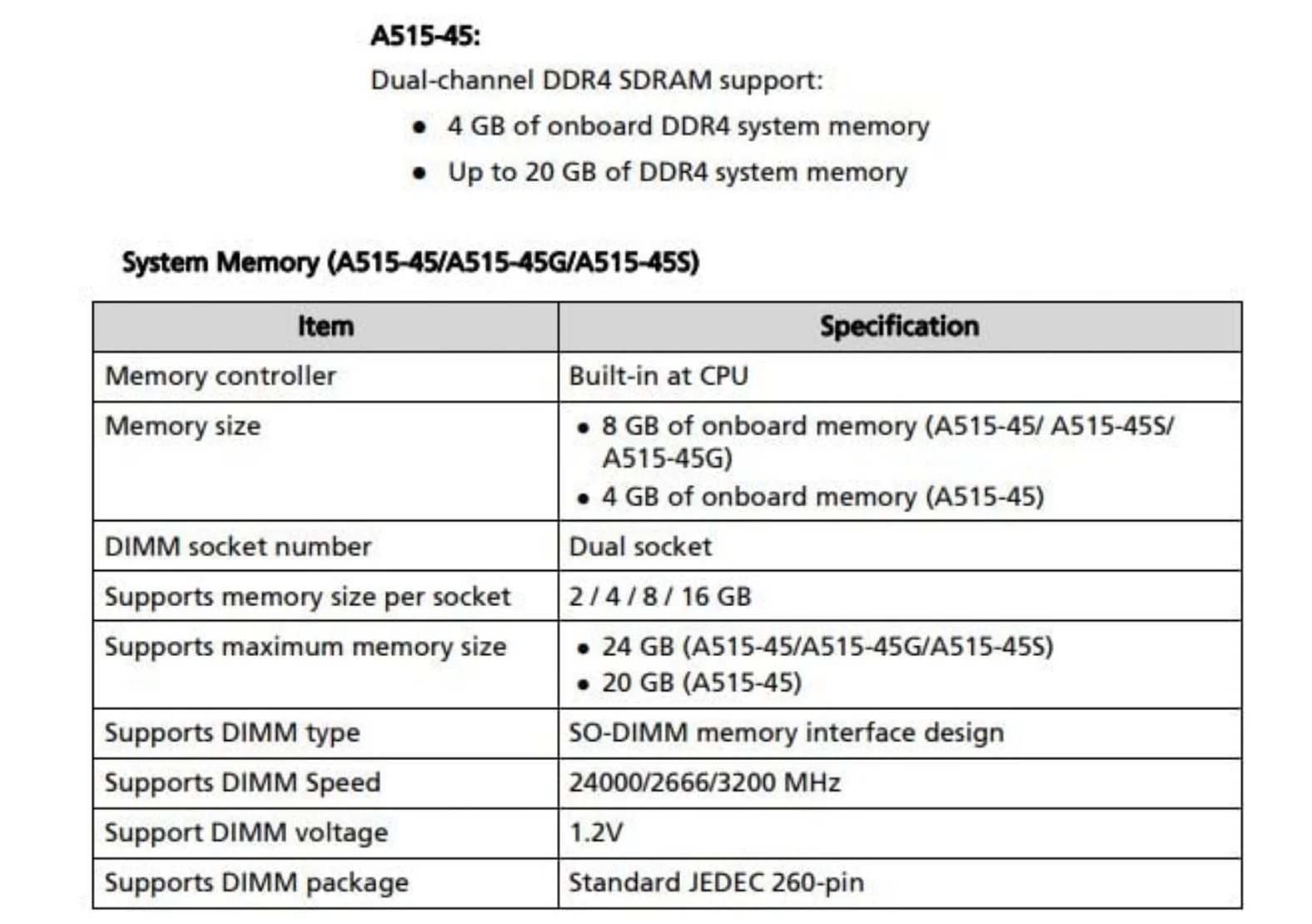
Your R5‑5500U model shares the same chassis and platform as the R7‑5700U variant, so the physical upgrade limits are similar. The “24 GB RAM / 2 TB storage” figures you’ve seen are Acer’s validated maximums — but in practice, higher capacities can work if the modules/drives meet the same specs.
🖥 RAM
- Slots: 1× soldered DDR4‑3200 (8 GB) + 1× SO‑DIMM slot.
- Current: 8 GB onboard + 16 GB in slot = 24 GB.
- Possible: Users have installed 32 GB in the slot for a total of 40 GB. Stability depends on using a quality DDR4‑3200 SO‑DIMM from a reputable brand.
- Tip: Match DDR4‑3200 speed. Mixed sizes are fine, but dual‑channel runs only on the matching portion.
💾 Storage
- M.2 NVMe slot: PCIe 3.0×4. Acer specs say up to 2 TB, but 4 TB NVMe drives (2280 form factor) have been used successfully.
- 2.5″ SATA bay: Accepts up to 7 mm‑thick SSD or HDD. You could add a 4 TB SATA SSD here if you need even more space.
- Tip: If installing both NVMe and SATA drives, check BIOS for boot order after the swap.
🔧 Upgrade steps (overview)
- Back up your data.
- Power off, unplug, and remove the bottom cover (small Phillips screws).
- For RAM — release the clips and insert the new module at a 30° angle.
- For NVMe — remove the screw, swap the drive, and secure it before reassembly.
- For SATA — connect drive to caddy, attach cable, seat in bay, then secure.
- Reassemble, boot, and check BIOS/Windows for detection.
⚠️ Notes:
- Use an anti‑static strap or ground yourself before handling components.
- Keep the original parts in case you need warranty service.
- While higher‑than‑spec upgrades often work, they’re unofficial — proceed with care.
 Puraw
Puraw





