





Best Of
Re: Acer Nitro V15 ANV15-41-Experiencing a strange issue with the GPU fan.
Open the NitroSense app, switch the fan mode to Manual, and drag the GPU fan slider to its maximum setting. Apply the changes and observe whether the fan stabilizes and responds consistently. Additionally, make sure your system is running the latest BIOS version and updated drivers. Visit Acer’s official support page, enter your laptop model, and download the most recent BIOS and drivers. After installing them, restart your laptop to ensure all updates take effect
Click on "Yes" if it answers your question or Click on "Like" if you find my answer useful
 Diya1811
Re: Acer Nitro V15 ANV15-41-Experiencing a strange issue with the GPU fan.
There are several possible causes for strange GPU fan issues on an Acer Nitro V15 ANV15-41, including software bugs, dust buildup, or a faulty fan. Issues with BIOS updates have also been reported for this model.
Common solutions
Try these troubleshooting steps, moving from the simplest to the more complex.
Software and settings
Update BIOS and drivers: Ensure your system has the latest BIOS and GPU drivers, as these can resolve fan control issues. Many users on Acer Community forums have reported that the latest updates have fixed their problems with unstable fan behavior.
Use NitroSense: Open the NitroSense application and set the GPU fan to "Auto." If you are using a custom profile, switch back to Auto to see if the issue persists. You can download the latest version from the Acer support website.
Disable custom fan software: If you have installed any third-party fan control software, uninstall it to prevent conflicts with NitroSense.
Hardware:- Clean the fan: Dust and debris can clog the fan and vents, causing it to make noise or spin erratically. You can clean the fans and vents using compressed air. The most effective method is to open the laptop and clean the fans directly with a brush and compressed air.
Check for obstructions: Ensure the fan is not blocked by a loose wire or any debris inside the laptop.
Consider a hardware problem: If the fan is still making unusual noises after cleaning, the motor or bearings may be worn out and the fan may need to be replaced.
-----------------------------------------
If this answers your question & solved your query please "Click on Like" and then Yes "Answered".
 Axxo
Axxo
Re: Nitro V15 ANV15-52-759K - eGPU compatibility with Thunderbolt 4 port
Hi Rayray2000
– The Nitro V15 ANV15‑52‑759K is an Intel‑based model (N23Q22) and includes a USB‑C port with Thunderbolt 4.– Thunderbolt 4 supports PCIe tunneling, DisplayPort Alt Mode, and Power Delivery. This means it is compatible with external GPU (eGPU) enclosures such as the Razer Core X.– Cards like the ASUS TUF Gaming GeForce RTX 4070 Ti OC or the Gigabyte GeForce RTX 4070 Super will work in such an enclosure. Performance depends on the enclosure’s PSU capacity and the bandwidth limits of Thunderbolt 4 (32 Gb/s PCIe).– Compared to mid‑range laptop GPUs, an eGPU with an RTX 4070‑class card will deliver a significant uplift, though some performance loss versus a desktop installation is normal due to Thunderbolt bandwidth.– Ensure you install the latest NVIDIA drivers and keep Windows fully updated for best compatibility.
 Puraw
Puraw
Re: Request for Original BIOS File for Acer Aspire V3-571G (Q5WH LA-7912P)
(1) Вы пытались получить доступ или изменить недокументированные настройки BIOS, которых не было в исходном немодифицированном пользовательском меню BIOS?
(2) Следует использовать размер по умолчанию 4096 байт.
(3) Также попробуйте переименовать файл Q5WVHX64.fd
(1) Did you try to access or change undocumented BIOS settings that were not in the original unmodified user BIOS menu?
(2) Default 4096 byte size.should be used.
(3) Also try renaming file Q5WVHX64.FD
 JackE
JackE
Re: RAM max capacity for Predator PHN16-71
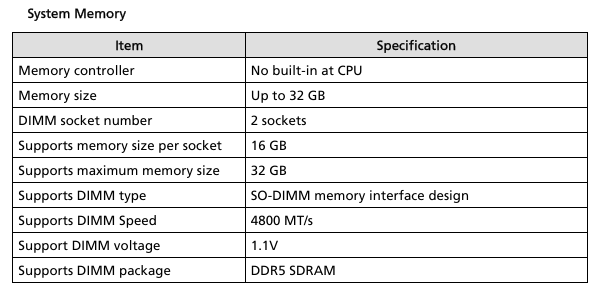
There are 2 RAM slots that support up to 16GB each to a total RAM 32GB DDR5-4800 • CL=40 • Non-ECC • SODIMM • 262-pins • 1.1V • 1Rx8 based • PC5-38400: Crucial 32GB Kit (16GBx2) DDR5-4800 SODIMM | CT2K16G48C40S5 | Crucial.com
Acer quoted memory specs for the PHN16-71 laptop from its service guide.
Click on "Yes" if it answers your question or Click on "Like" if you find my answer useful
Diya1811
Re: RAM max capacity for Predator PHN16-71
The Neo PHN16-71 cpu's are designed to work with up to 192GB total capacity ram, this laptops 13th Gen cpu's of the i5-13500HX and the i7-13700HX operates on max DDR5-4800MT/s CL40 type ram and the model with the i9-13900HX cpu operate on max DDR5-5600MT/s CL46 type ram.
I'm running my PHN16-71-50JG model i5-13600HX cpu / RTX4050 gpu on total of 64GB at 2x 32GB DDR5-4800MT/s CL40 type Crucial Micron ram and its been working perfectly for over 8 months without missing a beat, but this laptop has been updated to 96GB and above ram also, so search for the DDR5 appropriate 32GB or 48GB or 64GB single modules to be able to update to those larger capacities. Do NOT use XMP or overclocked ram modules as they will not work, use normal ram. Good luck and hope this helps you out.
If this answers your question and solved your query please "Click on Yes" or "Click on Like" if you find my answer useful👍

Re: Two Brand New Acer SA272 G0bi 27” Monitors not powering on - tried two units, same issue
When multiple brand-new units of the same model, like the Acer SA272 G0 27" monitor, fail to power on, it points to a probable issue with the batch, a specific component, or the external power supply rather than individual faults.
Basic troubleshooting steps
Try these steps with both monitors and their respective accessories to isolate the problem.
Rule out power outlet issues
Test the power source: Plug another electronic device, like a lamp or phone charger, into the same wall outlet to confirm it is working correctly.
Bypass power strips: If you are using a surge protector or power strip, plug the monitor's power adapter directly into a wall outlet to eliminate the surge protector as a potential failure point.
Verify the power adapter
Inspect the components: Visually inspect the power cords and adapters for any signs of damage, such as frayed wires, cracks, or bent prongs.
Swap power adapters: Since you have two monitors, use the power adapter from one unit to test the other. This can help determine if both monitors or both adapters are faulty.
Perform a power reset (or hard reset)
A power reset can clear any residual electrical charge that may be preventing the monitor from turning on.
Disconnect the power cord from the monitor completely.
Press and hold the monitor's power button for 30 seconds.
Reconnect the power cord and attempt to turn the monitor on again.
What to do if troubleshooting fails
If you have tried the steps above with both monitors and they still won't power on, the issue is likely with the products themselves.
Contact Acer support
Inquire about known issues: Explain to Acer support that you have received two brand-new units with the exact same issue. This indicates a broader problem, which Acer may already be aware of.
Request warranty service or replacement: Provide Acer with all necessary information to arrange a repair or replacement for the monitors under their warranty.
Return the monitors
Consider a full return: Given that two brand-new units have failed out of the box, you may want to return both to the retailer.
-----------------------------------------
If this answers your question & solved your query please "Click on Like" and then Yes "Answered".
Axxo
Re: Two Brand New Acer SA272 G0bi 27” Monitors not powering on - tried two units, same issue
Seems like you lucked out and got two bad monitors.
JackE
Re: Request for Original BIOS File for Acer Aspire V3-571G (Q5WH LA-7912P)
Всё в порядке. Попробуйте сначала Q5WV1X64.fd. Если не получится, просто переименуйте файл в Q5WH1X64.fd и попробуйте ещё раз.
That's OK. Try Q5WV1X64.fd first. If it doesn't work, simply rename file to Q5WH1X64.fd and try it again.
JackE





