





Best Of
Many problems with Acer Nitro V 16 ANV16-41-R6B0 using Arch Linux
Hello everyone, recently i bought an Acer Nitro V 16 ANV16-41-R6B0 and it's a really impressive machine with a beautiful black and orange square-ish 16:10 design and with some really good specs. I have paid 900€ for it, brand new, and i really thought i had made a very good purchase, until now.
This computer has immense problems if you wish to install anything other than Windows in it.
At the start, all was well, installed a fresh copy of Arch Linux (the manual way) up to the point where KDE Plasma is all set and running. So far, so good.
That was until i could not edit ANYTHING in the pc's BIOS as they would crash, having to restart it.
Then, i could not even access the BIOS to change the order of another bootable flash drive without freezing in the ACER NITRO logo as long as the flash drive was connected to the pc… Turns out it was like because of the weird entry that was added in the device's efi boot order after installing Arch where it was named "1.".
Luckily Arch's Laptop/Acer page has addressed this issue and i was able to fix it.
Next big issue is that "sometimes", the SDDM service or KDE itself fails to launch on boot, sometimes just showing the mouse cursor in a black background with the terminal waiting (having then to press CTRL+ALT+F3 to return to the terminal and rebooting) and sometimes, successfully launching KDE and when i type my password only a black screen shows, needing to reboot.
This has never happened with the dozens of other computers i have worked with that also had a fresh install of Arch Linux with KDE Plasma.
Next are the fans. I don't know why this computer (as well as other Acer Nitros, more on that later) rev the fans up when in the BIOS screen, it is really weird.
Since there are no drivers for Linux there is no way to control the fans. Performing the smallest of tasks rev the fans up even when not necessary (CPU and GPU at 38/39/40 degrees celsius and fans blowing as they were in turbo mode).
Again, luckily, Div's Acer Manager X (DAMX) exists so this stops being a problem.
Lastly, and possibly, the most frustrating of all these… There are two keys in the keyboard hardware that have the exact same keycode!
What does this mean? It means that two completely different keys that do two completely different functions get called at the same time one is pressed.
In KDE, if i press Fn+F5/Fn+F6 to decrease/increase brightness, it works perfectly, as it should. That is until i press Fn+F12 to increase my keyboard backlight and now the screen brightness goes all the way down and the Fn+F5 key, specifically, stops working.
With the program "showkey", it allowed me to check in the terminal the exact keys pressed and key events (pressed, released, etc…). Apparently, both keys, Fn+F12 or "keyboard backlight increase" and Fn + F5 or "screen backlight decrease" share the exact same keycode (224).
In the Fn+F5 case, the key events are "pressed" and "released" when clicked, but in the Fn+F12 only the key "pressed" event happens, no "release" is ever seen.
So now, if i press Fn+F12, the system thinks that i'm permanently pressing Fn+F5 forever and thus decreases the screen backlight permanently (that's why i cannot use Fn+F5 anymore) and can only reduce it in the task bar BUT the hardware somehow knows i pressed Fn+F12 only once and does, also correctly, increase the keyboard light by one notch. This does not happen the other way around, pressing Fn+F5 does not increase keyboard backlight.
This also happens with other recent Nitro laptops. My friend has gotten herself an Acer Nitro V 14 - ANV14-61 and the exact same things happen except for the "same keycode" point. It doesn't happen there. Where if i use "showkey" in the V 14, the Fn+F12 does not show any key event at all, so it does not press the Fn+F5.
So my guess is that the V 16 has a bug where the Fn+F12 key is wrongfully pressing/calling the key 224.
But alas, these are all incredibly frustrating points, and the only reason i have not returned this pc yet is because of good looks, hot parts under the hood and excellent price. But i do not have to endure all of this, it is a real shame, it's a very good computer with a very good price but i have only met frustration with it.
Luckily for it, i did spend a good four hours gaming with it yesterday and it is really as good in playing games as i thought it would be.
Extra info:
Acer Nitro V 16 - ANV16-41-R6B0;
Bios ver: 1.12;
AMD Ryzen 7 8845HS;
Nvidia RTX 4060 (85w);
32gb DDR5-RAM 5600MT/s;
1920x1200@165hz 45%NTSC.
Sorry for the long post, i just wish these problems were fixed, some already are, like the BIOS bug and drivers on Linux not being an issue.
[Edited the thread to add model name to the title]
 NitrousX
Re: Just got an Acer Aspire XC-1860 with 8GB ram. Should I Uninstall the expressed VPN that comes with the PC?
Yes you can. Feel free to remove all useless apps from settings

Re: How to fix a glitch on my home screen? (Model: Acer Aspire A715-79G)
To fix a glitch on your Acer Aspire A715-79G home screen, the issue is likely with the graphics driver or a software conflict. It is unlikely to be a hardware problem, especially if the glitch doesn't appear in Safe Mode.
Here is a step-by-step approach, from easiest to most involved:-
Step 1: Check for software conflicts
A flickering or glitching screen can be caused by a recently installed application.
Open the Task Manager by pressing Ctrl + Shift + Esc.Watch the screen. If Task Manager flickers along with everything else, the issue is likely the graphics driver.
If Task Manager does not flicker, the problem is an incompatible app. The best course of action is to uninstall recently installed applications one by one to find the culprit.
Step 2: Update your graphics drivers
If Task Manager flickers along with the rest of your screen, the graphics driver is the probable cause.
Press Windows + I to open Settings.
Navigate to Windows Update, then click Check for updates. Any available graphics driver updates will be installed automatically.For a more specific update, open the Device Manager by right-clicking the Start button.
Expand Display adapters, right-click your graphics card (e.g., NVIDIA, Intel), and select Update driver.
Choose Search automatically for updated driver software.
Step 3: Roll back your graphics driver
If the issue started after a recent update, rolling back the driver can resolve the problem.
In Device Manager, right-click your graphics card and select Properties.
Navigate to the Driver tab and click Roll Back Driver, if available.
Step 4: Perform a clean reinstallation of the graphics driver
If rolling back doesn't work, a complete removal and reinstallation can fix corrupted drivers. For this, it is best to use a specialized utility like Display Driver Uninstaller (DDU).Download Display Driver Uninstaller (DDU) from a trusted site like Guru3D.
Download the latest graphics driver for your specific card (NVIDIA or Intel) from the manufacturer's website.
Restart your computer into Safe Mode.
Press Windows + I > System > Recovery.
Click Restart now under "Advanced startup."
Once restarted, go to Troubleshoot > Advanced options > Startup Settings > Restart.
Press 4 or F4 to enter Safe Mode.
Run DDU, select your GPU brand, and choose Clean and restart.
After restarting, install the fresh driver you downloaded earlier.
-----------------------------------------
If this answers your question & solved your query please "Click on Like" and then Yes "Answered".
 Axxo
Axxo
Re: Upgrading Storage and RAM, does my Acer Nitro 5 (AN515-58) laptop support an extra SSD slots?
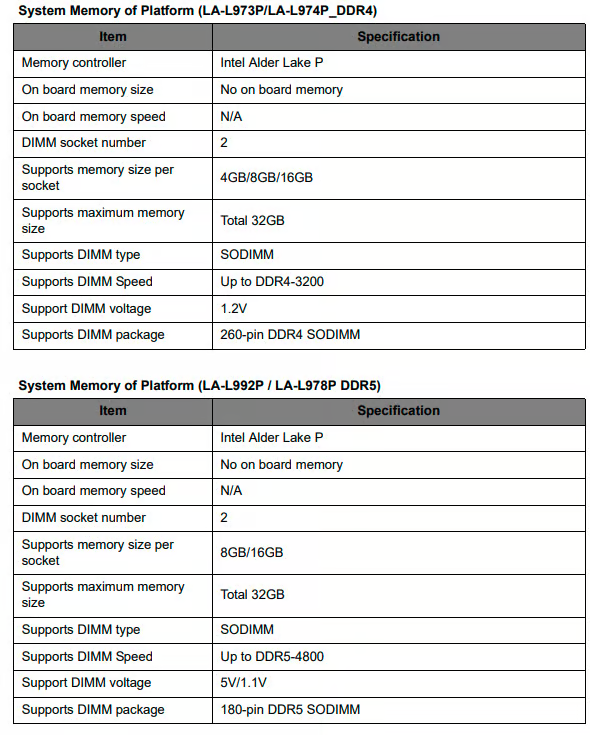
Here's the memory specification details for both DD4 and DDR5
Click on "Yes" if it answers your question or Click on "Like" if you find my answer useful
 Diya1811





