Best Of
Re: Blue light indicator on the X27UW1. I can’t seem to find the where the blue light indicator is on. Any ideas?
Hi Aushie,
The power indicator light on the Acer Predator X27UW1 is typically located on the bottom bezel, often integrated into or situated right next to the power button.
Light Indicator Meanings - On Predator monitors like yours, the color of this LED indicates the current power status:
- Steady Blue: The monitor is powered on and receiving an active video signal.
- Steady Amber/Yellow: The monitor is in standby or power-saving mode, meaning it is powered on but not receiving a video signal from your computer.
- Flashing Blue/Amber: This specifically occurs on Acer OLED models during an Image Retention Refresh (a maintenance process to prevent screen burn-in).
- No Light: The monitor is completely powered off.
Where to Find ItIf you cannot see the light at all:
- Check the Bottom Right or Center: Most Predator models place the power button and its LED in the bottom right corner. If your model is an ultrawide or curved version, it might be located at the bottom center for easier access.
- Backside Toggle: Some premium Predator models use a joystick/toggle button on the backside of the display bezel (right side when facing the screen). In these cases, the LED might be visible from the bottom edge underneath that area.
- Check for "Deep Sleep": If the light only appears briefly and then disappears, your monitor might be in a "Deep Sleep" state. You can usually disable this in the On-Screen Display (OSD) menu under "System" settings to keep the indicator more consistent.
If you see a flashing blue light but a black screen, it usually means the monitor is searching for a signal. Ensure your DisplayPort or HDMI cables are securely plugged in on both ends.
----------------------------------------------------------------------------------
If this comment answers your question, Please "Click on Yes" and then Answered.
 Axxo
Axxo
Re: Predator PH16-71 battery options. Been planning to get one for my Predator.
For your Acer Predator Helios 16 PH16-71, third-party batteries can be a cost-effective alternative, but they carry risks that may not be worth the trade-off for a high-end gaming machine.
Are Third-Party Batteries Worth It?
While third-party batteries are often significantly cheaper, their value depends on their build quality and safety features. Expert reviews and community consensus suggest that while many work adequately, they often lack the same longevity and safety standards as original parts.
- Safety Risks: Low-quality third-party batteries may omit overcharge and short-circuit protection circuits, leading to potential overheating or swelling.
- Performance Concerns: Non-genuine batteries sometimes provide incorrect charge readings or fail to be recognized by the system's power management software.
Battery Compatibility: PH16-71 vs. PHN16-71
Yes, the batteries for the Predator Helios 16 (PH16-71) and the Predator Helios Neo 16 (PHN16-71) are cross-compatible. Both models use the same standard battery specifications:
- Part Number: Commonly identified as AP21A8T or AP21A7T.
- Capacity: 90 Wh (4-cell).
- Voltage: 15.4V (some variants are 15.2V, which are generally interchangeable).
Battery Options for Predator PH16-71
When choosing a replacement, prioritize these categories:
- Genuine Acer Batteries: These are the safest option, ensuring full compatibility and standard safety protections.
Click on "Yes" if it answers your question and Click on "Like" if you find my answer useful
 Diya1811
Re: Predator PH16-71 battery options. Been planning to get one for my Predator.
Hello @mwvane,
Yes, the Predator PHN16-71 (Helios Neo 16) and the PH16-71 (Helios 16) use the same battery models. Both laptops typically come with an internal 90Wh / 15.4V lithium-polymer battery. The most common compatible part numbers for both models are AP21A8TAP21A7T, and AP21A5T.
. Are Third-Party Batteries Worth It?
Third-party batteries can be worth it as a budget-friendly alternative, but they carry risks that depend on the supplier's reliability.
- Pros:
- Cost: Significantly cheaper than official OEM replacements.
- Availability: Easier to find for older models where the manufacturer may have stopped production.
- Cons & Risks:
- Safety: Lower-quality batteries may lack essential protection circuits for overcharging or overheating, posing a fire risk.
- Inaccurate Reporting: Third-party firmware might show incorrect wear levels or jumpy percentage readings.
- Longevity: They often use lower-grade cells that degrade faster than the original 300–500 cycle lifespan of OEM packs.
Recommendations for Replacement
If you choose a third-party option, prioritize "Trusted Compatible" brands that offer a warranty over "Unverified" or misrepresented "fake genuine" listings.
- OEM Option: Check for genuine parts on eBay using part number KT.00407.011 or AP21A7T
Expert Advice: If your current battery is failing very early, some tech experts suggest checking for motherboard chip issues (like BQ or EC chips) before assuming the battery itself is dead.
If you feel my above comment answers your question, then click on 'Yes'! Click on "Like" if you find my answer is useful in any way.
 Murav
Murav
Re: Acer Aspire XC-230 - Can I install an SSD in the PCIe slot?
Good luck with your upgrade.😊
 JackE
JackE
Re: My AN517-55 doesn't have a applications for Nitrosence, Is the latest version available?
This error happens because your computer has incorrectly associated .config files with Adobe Acrobat. NitroSense uses a file called setup.exe.config to run, but instead of reading it as code, Windows is trying to "open" it as a PDF.
How to Fix File Associations:- You need to reset your default apps so Windows stops using Acrobat for these system files.
Reset All Default Apps:Open Settings (Win + I). Go to Apps > Default apps. Scroll to the bottom and click the Reset button under "Reset all default apps".
Restart your computer and try opening NitroSense again.
Axxo
AcerSense not set to Performance mode. This happened after today's Windows 11 PRO update.
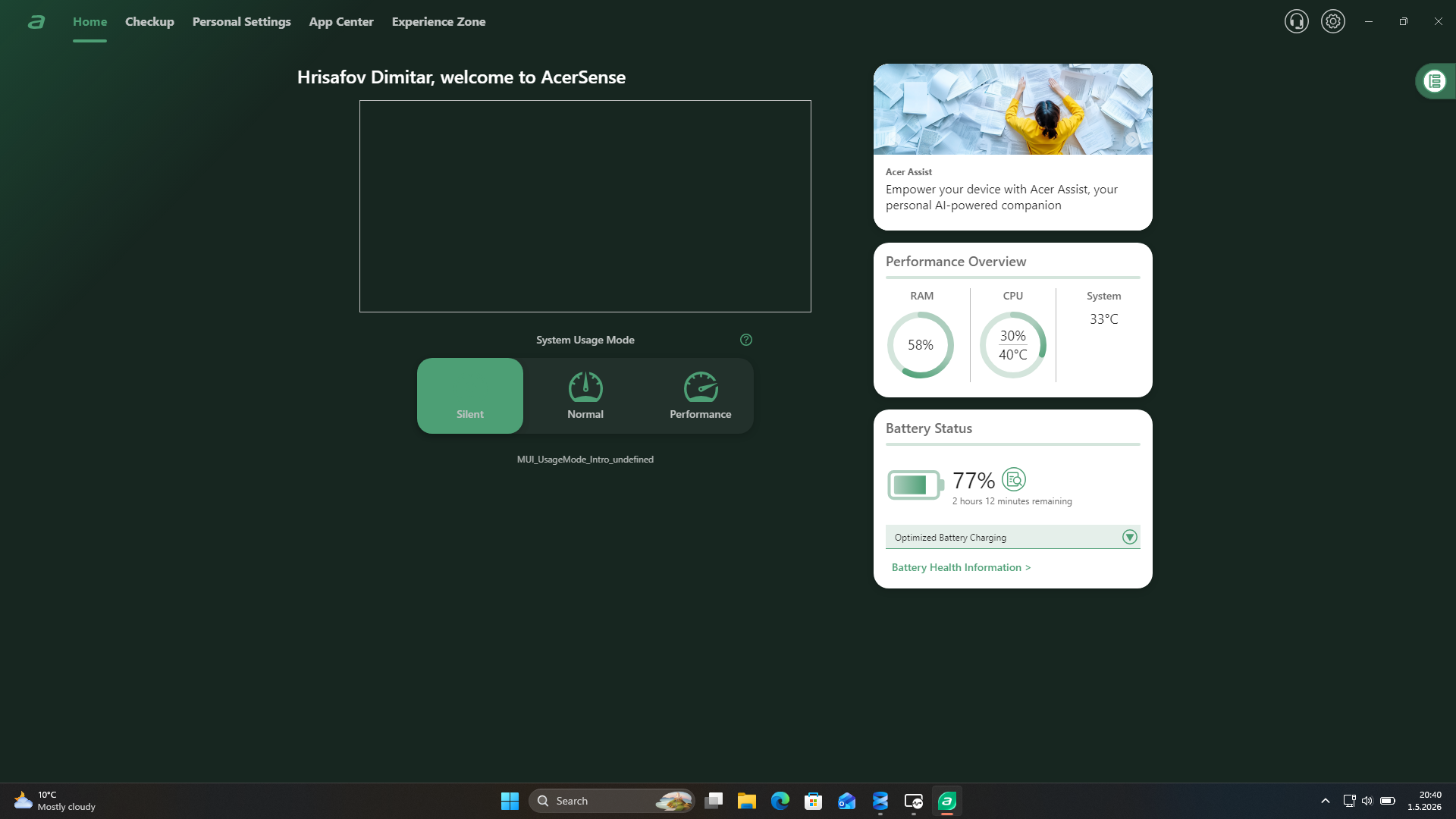
AcerSense do not set to a Performance mode.
[Edited the thread to add issue detail]

Re: Acer X115H projector - The projector shows a purple light but does not start. I replaced the EPROM but issue still persists.
Hi Aymen33,
For the Acer X115H, a purple light usually occurs when the red (Standby) and blue (Power) LEDs are active at the same time, indicating a logic conflict or a motherboard/power supply unit (PSU) failure. Since replacing the EPROM did not work, the issue is likely deeper in the hardware.
Potential Hardware Causes
Power Supply Unit (PSU) Failure: A common cause is a faulty PSU that provides enough voltage (approx. 5V) for the standby light but fails to deliver the required higher voltage (usually 12V or more) to start the fans and ignition.
Mainboard Short or Component Failure: If a component on the mainboard is overloading the power supply, the unit may enter a protection mode, preventing the fans from spinning or the lamp from igniting.
Safety Switch Issues: Check the lamp door safety switch. If the door is not fully closed or the switch is faulty, the projector will receive power but refuse to initiate the startup sequence.
Troubleshooting Steps
Hard Reset: Unplug the power cord and press and hold the power button for 30–60 seconds to drain residual electricity from the capacitors. Plug it back in and try to power on.
Inspect the PSU: If you have technical experience, check the voltage output on the PSU pins. In similar cases, a reading of around 4.8V was found while in standby, but the unit failed to switch to the full 12V needed for operation.
Check Internal Connectors: Ensure all ribbon cables and fan connectors are securely seated. A single loose connection to a critical sensor (like a thermal sensor or fan) can prevent the system from booting.
Test the Lamp: Although unlikely to cause a purple light on its own, a completely dead lamp or a blown lamp fuse can sometimes stall the startup process. Inspect the lamp for any physical cracks or darkening.
If the unit remains unresponsive after these checks, the Mainboard likely has a faulty voltage regulator or a failed microcontroller that was not resolved by the EPROM swap.
----------------------------------------------------------------------------------
If this comment answers your question, Please "Click on Yes" and then Answered.
Axxo
Re: Predator PHN16-71 Screen Freezes during normal use, works fine in safe mode and gaming
yes that is the setup I used! Unfortunately, the freezes are still taking place.
 skan131
Predator PHN16-71 Screen Freezes during normal use, works fine in safe mode and gaming
Hi so I’ve been having this issue for a while and I cannot figure out a fix. I’ve tried literally everything at this point. It’s really weird, but basically the screen randomly freezes (usually no glitches or anything on the screen, just completely freezes with no mouse movement on USB mouse or touchpad and shortcuts don’t work) but the computer does not freeze while in safe mode or while gaming. It only does this on just normal random Home Screen or Google browsing etc. if I’ve full screened a game, it works with no crash. I’ve tried almost everything I’ve read online, but no idea what’s going on.
Specs are intel i7-13700HX, NVIDIA GeForce RTX 4060, 32GB ram upgraded from 16 gb at purchase.
skan131
Re: Nitrosense isn't working or Installing on my AN515-58. How to fix?
Here it is. Download and install it: