





Best Of
Re: PHN16-71 laptop stutters between ac and battery when i dont plug it in for a while
I'm using the exact same laptop and this is a symptom of the EC chip that handles start-up's, it could be that the chip gets frozen and needs to be reset for it to work properly and by turning it on/off it does nothing and it does not reset the chip.
I suggest that you do a hard reset first and then see if this problem stops, if not then you need to take your laptop to an experienced technician and get them to either reprogram the EC chip and bios chip or it could be that the EC chip might need replacing, as a good tech has all the appropriate experience to pinpoint this fault exactly. Good luck and hope this helps you out.
************************************************************
Hard Reset of the PHN16-71 - Remove eleven (11) screws from the base cover, carefully pry up the base cover starting from the upper left and right sides to release the latches. Continue releasing the remaining latches on all sides of the system. Then remove the base cover of your PHN16-71 laptop
Then disconnect the main battery plug from the mainboard and take the main battery out, afterwards press the power key for 20 sec to release all power out of the laptop. Disconnect the RTC/BIOS battery and then short the bios batteries plug + & - pins monetarily with a metal screwdriver at the mainboard plug (as shown at the B plug below) to reset CMOS and then take all the DDR5 ram modules out.
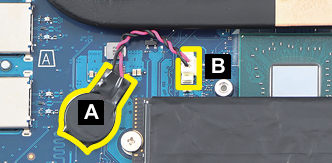
Leave the laptop like that for at least 60min so that the EC, Chipset and bios chips reset properly and completely and then reconnect everything back, if you have 2x ram modules, only connect 1x ram module when you initially boot the laptop and then alternate the two ram modules and see if its not the ram that is faulty, as the laptop should reset and turn on and boot properly and like new.
If this answers your question and solved your query please "Click on Yes" or "Click on Like" if you find my answer useful👍

Re: PHN16-71 laptop stutters between ac and battery when i dont plug it in for a while
Hello @han_balling,
This behavior—stuttering between AC and battery, lag, and refusal to boot without being plugged in— for the Acer Predator Helios Neo 16 (PHN16-71).
It often points to a "stuck" Embedded Controller (EC) or a desynchronized battery fuel gauge, though a failing power adapter or battery can't be ruled out.
Recommended Troubleshooting Steps:
Perform a Full Hard Reset (Static Discharge).
This is the most common fix for the PHN16-71 when it refuses to boot or stutters between power modes.
Unplug the charger and all peripherals (USB drives, mice, etc.).
Press and hold the Power button for a full 60 seconds.
Plug the charger back in and wait for the charging LED to turn a steady blue before turning it on.
Calibrate the Battery:
The "stuttering" often happens because the system can't accurately read the battery's charge level after it sits idle.
Software Method: Open Acer Care Center, go to the Checkup tab, and run the Battery Calibration tool.
Manual Method: Charge to 100%, unplug it, and use it until it shuts down. Leave it off for 5 hours, then charge it fully to 100% without interruption.
Inspect the Physical Connection:
The barrel plug on Predator laptops must be pushed in firmly until you hear/feel a distinct "click".
If it isn't fully seated, the connection can flicker under load or after sitting, causing the beep and stuttering you described.
Check BIOS and Drivers:
Ensure your BIOS is updated to at least version 1.18 (released Sept 2024), which improved system stability for this model.
Update your Intel and NVIDIA graphics drivers through Acer Support.
Potential Hardware Issues:
Faulty Charger: If the charger's amperage has dropped due to internal wear, it may provide enough voltage to "detect" but not enough current to actually run the laptop, leading to the rapid switching.
Failing Battery: If the laptop never starts on battery alone even after a reset, the internal battery may have a "collapsed cell" and require replacement.
Replacement Parts (If needed).
If troubleshooting doesn't work, you may need to replace the Original Acer Charger (typically 230W or 330W depending on your specific GPU).
Click on 'Yes' if my comment answers your question! Click on "Like" if you find my answer is useful in anyways.
 Murav
Murav
Re: Predator Helios Neo 16S AI - Windows forced BIOS update destroyed FPS
Hello @JadedTues,
This is a frustrating situation, especially with a high-end machine like the Predator Helios Neo 16S AI.
The BIOS update you received via Windows Update (Insyde Software Firmware 1.0.26.0) likely reset your system's power and graphics configurations to power-saving defaults, which is why your FPS has tanked.
Additionally, the "hardware requirements" error from NVIDIA often occurs when the system is stuck using the integrated Intel graphics instead of the dedicated NVIDIA GPU.
Immediate Fixes for FPS and GPU Detection:
To restore your performance and allow the Resident Evil code redemption, you need to force the laptop to use its dedicated GPU:
Switch to Discrete GPU Mode:
Open the Acer PredatorSense app. Look for GPU Operating Mode and change it from "Optimus" or "Auto" to Discrete Only. This engages the MUX switch and ensures the NVIDIA card is always active.
Reset Power Plan: Windows updates often revert your power plan to "Balanced." Go to Settings > System > Power & Battery and set Power Mode to Best Performance.
In PredatorSense, ensure your "Scenario Profile" is set to Turbo or Performance while plugged in.
Perform a CMOS/Battery Reset: If the system still feels "stuffed," a hardware-level reset can clear bugged firmware states. Unplug the AC adapter, then press and hold the Power Button for 45 seconds to perform a static discharge.
Disable Intel Application Optimization (APO): This software (often pre-installed on 14th Gen HX chips) can cause erratic performance after firmware updates. Try uninstalling it from Apps & Features to see if your FPS stabilizes.
Fixing the Resident Evil Code Error:
NVIDIA's redemption tool performs a hardware check. If your BIOS update forced the laptop into an iGPU-only mode or a low-power state, the tool cannot "see" the eligible RTX card.
Set Global GPU: Open the NVIDIA Control Panel, go to Manage 3D Settings, and set the Preferred graphics processor to High-performance NVIDIA processor.
Redeem via NVIDIA App: If you are using GeForce Experience, try switching to the newer NVIDIA App. Some users have found success by manually entering the code rather than copying/pasting.
Escalating Support:
Since you are having trouble reaching a human at Acer, try these direct contact methods instead of the general message boards:
Acer Official Support: Use the Acer Support Portal to enter your SNID/Serial Number. This should unlock direct Chat or Phone options specific to your warranty tier.
Warranty Repair: If the BIOS update has fundamentally bugged the power delivery (e.g., capping the GPU at 60-70W), you may need a mainboard "re-flash" or replacement under warranty.
Click on 'Yes' if my comment answers your question! Click on "Like" if you find my answer is useful in anyways.
Murav
Re: Can't download PredatorSense- PredatorSense app is not there for me to obtain
Note that version is the one for Windows 10, so it might behave oddly with Windows 11. They didn't do a new version for your model when W11 was released.
 billsey
Re: AN515-57 - Can't download Nitrosense because I dont find application. Please help me
Here it is. Download and install it:

Re: Aspire TC-1750 desktop multiple issues. Windows explorer was jumping up to 50% usage, and the machine was locking up.
> > re-seated the memory>
Now re-seat the CPU.
 JackE
JackE
Re: My Acer Nitro 16-41-R57Q.has a charging issue. The charger tip has always fallen out of my laptop but I assumed it was because of the weight.
With these Nitro back DC_IN power powers you need to make sure that when you plug the adapter into the laptop the adapters barrel plug is inserted fully until you hear a click, as it could be that you are only inserting the barrel adapter plug half way into the DC_In port, so check tht first.
You need to plug the adapters barrel plug into the laptop like below
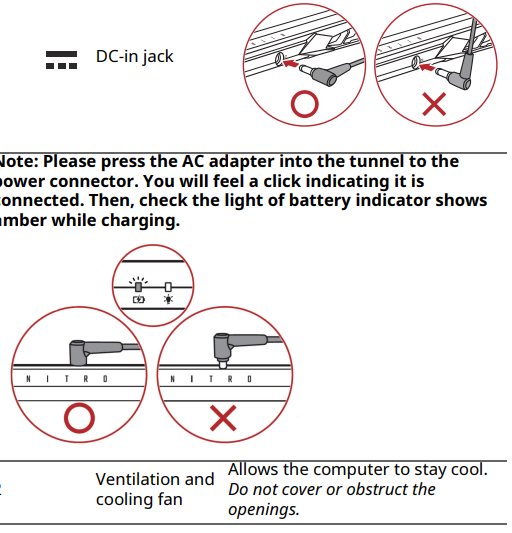
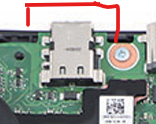
The back DC_In ports negative springy pins have been pushed in and the adapters barrel pug is loose, the only way to fix this is to get a sharp tool to bend those outside port pins inwards so that it grabs the adapters barrel plug, also, it could be that those negative pins have broken off and the DC_In port needs replacing. I suggest that you take your laptop to an experienced tech in your area. If you are in London or near there, I suggest that you send your laptop to one of the best techs around called Sorin Electronics (this is his You Tube channel, so look there) and send your laptop to him, as he will fix this issue or anything else that is wrong with your AN16-41 Nitro model laptop. Good luck and hope this helps you out.
Nitro AN16-41 DC_In port that could be damaged and needs replacing,
If this answers your question and solved your query please "Click on Yes" or "Click on Like" if you find my answer useful👍
Re: My Acer Nitro 16-41-R57Q.has a charging issue. The charger tip has always fallen out of my laptop but I assumed it was because of the weight.
Hello @SJA265,
It sounds incredibly frustrating to have your progression raids interrupted by a hardware issue, especially when you've invested in upgrades like that Samsung Evo.
For the Acer Nitro 16 (AN16-41), the "loose" feeling is often caused by a damaged internal retention clip in the DC jack that is supposed to "click" the charger into place.
- Temporary "No-Cost" Workarounds.
Since a replacement is currently outside your budget, you can try these stability fixes to keep you in the raid:
The "Support Loop" (Strain Relief): Instead of letting the heavy 330W cable pull straight down, create a small loop with the cable and use a Velcro tie or elastic band to secure it to the laptop's hinge or a nearby desk lamp.
This transfers the weight of the "brick" away from the delicate port.
Check for Internal Debris: Use a wooden toothpick or a can of compressed air to gently clear the port.
Even a tiny amount of compressed lint can prevent the "barrel" from seating deeply enough to engage the lock.
Wedge Method: Some users find that a tiny sliver of electrical tape on the outside of the charger’s metal barrel can create just enough friction to keep it snug.
Do not put anything inside the hole or on the center pin.
- Low-Cost Repair Path.
If the port is physically broken, "workarounds" will eventually fail. You don't necessarily need a whole new £100+ charger; you likely just need a new DC Jack.
The Part: For your model, the internal charging port (DC Jack) is often a modular cable that plugs into the motherboard, meaning no soldering is required.
Labour: If you have a friend who is comfortable opening electronics (since you've already swapped an SSD), this is a 15-minute "plug and play" swap once the back cover is off.
- Charger Specifications for Future Reference.
If you do eventually need a charger, ensure it matches these exact specs to avoid damaging your Nitro 16:
Power: 330W (19.5V, 16.9A).
Tip Size: 5.5mm x 1.7mm (This is the standard Acer "Purple/Blue" tip size).
Click on 'Yes' if my comment answers your question! Click on "Like" if you find my answer is useful in anyways.
Murav
Re: My Acer Nitro 16-41-R57Q.has a charging issue. The charger tip has always fallen out of my laptop but I assumed it was because of the weight.
Hi SJA265,
For a immediate workaround so you don't wipe your raid, the most effective "quick fix" is to secure the cable with a physical strain relief to prevent it from moving or falling out while you play.
Immediate "Raid-Ready" Workaround
If the port feels loose, any movement of the laptop or the weight of the heavy 230W power brick's cable can cause it to slip.
Tape/Velcro Strain Relief: Use electrical tape or a Velcro strap to secure the charger cable to the side or back of the laptop chassis. Give the cable a small amount of "slack" (a loop) before taping it down, so any tugs pull on the tape rather than the loose internal pin.
Elevate the Cable: Ensure the power brick is on the same level as your laptop (e.g., on the desk) rather than hanging off the edge. This removes the "weight" factor you mentioned.
Adjust Windows Power Settings: To prevent the "freezing" when it detaches, change your Power Plan to "Best Performance" even on battery. This may reduce the sudden stutter caused by the CPU/GPU downclocking when it loses AC power.
Why it's Loose: The "Knuckle" Issue
The Acer Nitro series often uses a barrel jack where internal metal "fingers" (contacts) grip the charger tip.
Straightened Grips: Over time, these metal fingers can straighten out, losing their "click" and grip.
Broken Retention Clip: There is a small metal clip inside the port designed to catch a ridge on your charger. If this clip is mangled, the charger will fall out with even a slight touch.
Long-Term Solutions
Since you're on a newer Acer Nitro 16 (AN16-41), it's likely still under warranty.
Warranty Check: Visit the Acer Support Portal to check your status. If it's a manufacturer defect, they may replace the charging daughterboard or the cable for free.
Port Repair: For many Nitro models, the DC jack is a "plug and play" cable that doesn't require soldering, but it does require opening the chassis.
----------------------------------------------------------------------------------
If this comment answers your question, Please "Click on Yes" and then Answered.
 Axxo
Axxo
Re: Aspire TC-1750 desktop multiple issues. Windows explorer was jumping up to 50% usage, and the machine was locking up.
What is the exact specs of your Aspire TC-1750 desktop, has it got an NVidia dedicated gpu, what size DDR4-3200MT/s CL22 type ram is fitted oem to your desktop, is it the oem 16GB capacity or have you upgraded the ram to 32GB or above, as the cpu's for this desktop are the 12th Gen cpu's and the i7-12700 cpu is the top end cpu fitted to this desktop (that all 12th gen cpu's are designed by Intel to operate up to 128GB max ram, at DDR4-3200MT/s CL22 type ram) and what PSU has it got, is it a 300W or a 500W oem Acer type, as all these components can be a factor to the problems that you are experiencing if they are faulty especially ram and the dedicated Nvidia gpu.
The screen lines and freezing, is not only from the graphics drivers that could be a problem, its more likely the ram, power shortage or the EC or chipset chips that can cause all these problems. Give us more details of the exact specs of your Aspire TC-1750 desktop, as these desktops came in many different specs and with a dedicated NVidia GeForce® GT 730 gpu card or similar.
Also, Make sure that you have the latest Win-11 version 23H2 and all updates up to the last OS build: 26200.8037 done.
If this answers your question and solved your query please "Click on Yes" or "Click on Like" if you find my answer useful👍





