





Best Of
Re: Can I use a 2TB PCle 4 nvme ssd on my laptop? #anv15-51 789J
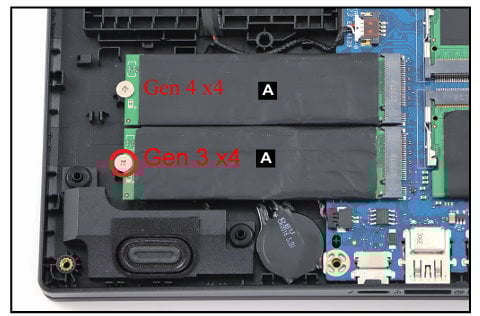
YES, your Nitro ANV15-51 can operate with a Gen 4 x4 M.2 1TB 2TB or 4TB M.2 SSD drive only in its boot drive slot, as NOT both M.2 slots are Gen 4 x4 type slots, so be aware of that and don't get confused.
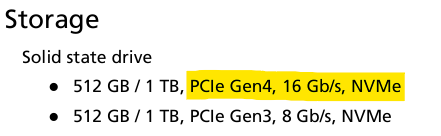
The ANV15-51 has a boot M.2 slot at a speed of a Gen 4 x4 lane type drive and the secondary M.2 slot is a Gen 3 x4 lane M.2 SSD drive type, see specs below.
Also, I suggest that you look at the best performing tested M.2 SSD drives as tested by Tom's Hardware SSD M.2 Benchmarks 2025 HERE, so look at these charts as its a great guide for all the speeds of the M.2 SSD drive suitable for your ANV15-51 laptop. Good luck and hope this helps you out further.
The quickest 2TB Gen 4 x4 M.2 SSD that they have tested is the WD Black SN7100 2TB at 6,997 Seq MB/s and 2,049 Copy MB/s, so consider this drive or the 2TB Samsung 990 EVO.
Nitro ANV15-51 storage specs as per Acer SG, highlighted is the boot drive specs:
M.2 SSD drive specs position slots in the laptop
If this answers your question and solved your query please "Click on Yes" or "Click on Like" if you find my answer useful👍

Re: Why is there a 1GB partition between Drive C and D and how can I transfer space from D to C around it?
On some models they partition the drive with a C: drive that holds the system files and a D: drive that is supposed to be just for data. Unfortunately when they set the partitions up like that, the recovery partition is created right after the system partition, and before the data partition. That's a Microsoft thing, where they create the EFI partition, then the system partition, then the recovery partition and only do a data partition last. The best way to deal with it, unless you want to have a separate data partition, is to move everything off the data partition, then delete the data partition, then use a partition utility to move the recovery partition to the end of the disk, then expand the system partition to fill the space between.
 billsey
Re: Why is there a 1GB partition between Drive C and D and how can I transfer space from D to C around it?
Hi CJR1
The 1 GB partition you see between C: and D: is a recovery or system volume created automatically by Windows or the OEM. It contains boot or recovery files and should not be deleted or modified.
What is less clear is what you mean by “Drive D.” If D: is a separate physical SSD, then the 1 GB partition is unrelated and simply sits at the end of the C: disk. If D: is instead another partition carved out of the same boot drive, then Windows Disk Management will show it directly after that 1 GB recovery volume.
To clarify:
- Open Disk Management (press Windows key + X, choose Disk Management).
- Look at the graphical layout at the bottom. Each physical disk is labeled “Disk 0,” “Disk 1,” etc.
- If C:, the 1 GB partition, and D: are all on “Disk 0,” then D: is just another partition on the same drive.
- If D: appears under “Disk 1” or another disk number, then it is a separate SSD.
In either case, leave the 1 GB recovery partition untouched. It is required for system recovery and updates.
For reference, Microsoft explains recovery partitions here: https://learn.microsoft.com/en-us/windows-hardware/manufacture/desktop/windows-recovery-environment--windows-re--technical-reference
 Puraw
Puraw





