





Best Of
Re: Can't find Nitrosense or Acer care center for acer shadow knight sh16-74?
You can find drivers and applications for the Acer Nitro V 16 on the official Acer support website by entering your laptop's serial number, SNID, or model number. After navigating to the "Drivers and Manuals" section, select your operating system and download the necessary files, which often come in a ZIP archive that needs to be extracted before running the setup file. For applications like NitroSense, which may be preinstalled, you can also find them on the same support page if they need to be reinstalled.
To download drivers and applications
Visit the Acer support site: Go to the Acer support and drivers page for your region.
Enter your device information: Use your laptop's serial number, SNID, or model number to find your specific model. You can also find the serial number by opening Command Prompt as an administrator and typing wmic bios get serialnumber.
Navigate to Drivers: Once your model is selected, find and click on the "Drivers" or "Drivers and Manuals" tab.
Select your operating system: Choose the correct version of Windows that is installed on your laptop.
Download the drivers/applications: Locate the driver or application you need and click the download link, usually on the right-hand side.
Install the files:
Once the download is complete, open the file (often a .zip archive) and extract its contents.
Find the setup.exe or a similar installation file within the extracted folder and run it.
Follow the on-screen instructions to complete the installation.
For specific applications
GeForce Experience: If you need NVIDIA drivers, open the GeForce Experience application that comes pre-installed on your laptop and look for the "Drivers" section to download the latest ones.
NitroSense: This application, used for monitoring and controlling fan speed and power plans, is usually pre-installed. You can find a downloadable version on the support site if you need to reinstall it.
-----------------------------------------
If this answers your question & solved your query please "Click on Like" and then Yes "Answered".
 Axxo
Axxo
Re: Aspire A715-42G Windows11 BIOS update? Since it upgraded I have had a number of crashes.
An updated BIOS is likely necessary for your Aspire A715-42G to run Windows 11 reliably and fix system crashes. Incompatible or outdated drivers are a common cause of stability problems after a major OS upgrade.
Warning: Updating your BIOS is an advanced procedure. Read all instructions carefully and do not interrupt the update process, or you risk permanent damage to your computer.
Step 1: Check your current BIOS version
Click the Start button and search for System Information.
Open the app and find the row labeled "BIOS Version/Date".
Take note of the version number. You will use this to confirm the update was successful later.Step 2: Download the latest BIOS from Acer
Go to the official Acer Support website: https://www.acer.com/us-en/support/drivers-and-manuals.
Search for your model by entering Aspire A715-42G or your laptop's serial number or SNID.
Under the "BIOS/Firmware" tab, locate and download the latest version. For the A715-42G, this is likely version 1.10.
Step 3: Update the BIOS
Back up your important data before starting.
Connect your AC power adapter. The update will not proceed without it.
Right-click the downloaded ZIP file and select "Extract All".
Navigate to the extracted folder and double-click the executable file (e.g., BIOS.exe).
If you see a Windows Defender or User Account Control prompt, confirm that you want to proceed.
The tool will launch, and you will need to click OK to begin the update.
Do not turn off or restart your laptop during the process. Your system will reboot automatically.
-----------------------------------------
If this answers your question & solved your query please "Click on Like" and then Yes "Answered".
Axxo
Re: Does Aspire 15 A15-41M-R7ZM USB4 port support Thunderbolt?
OK, after some trial and error here are my results:
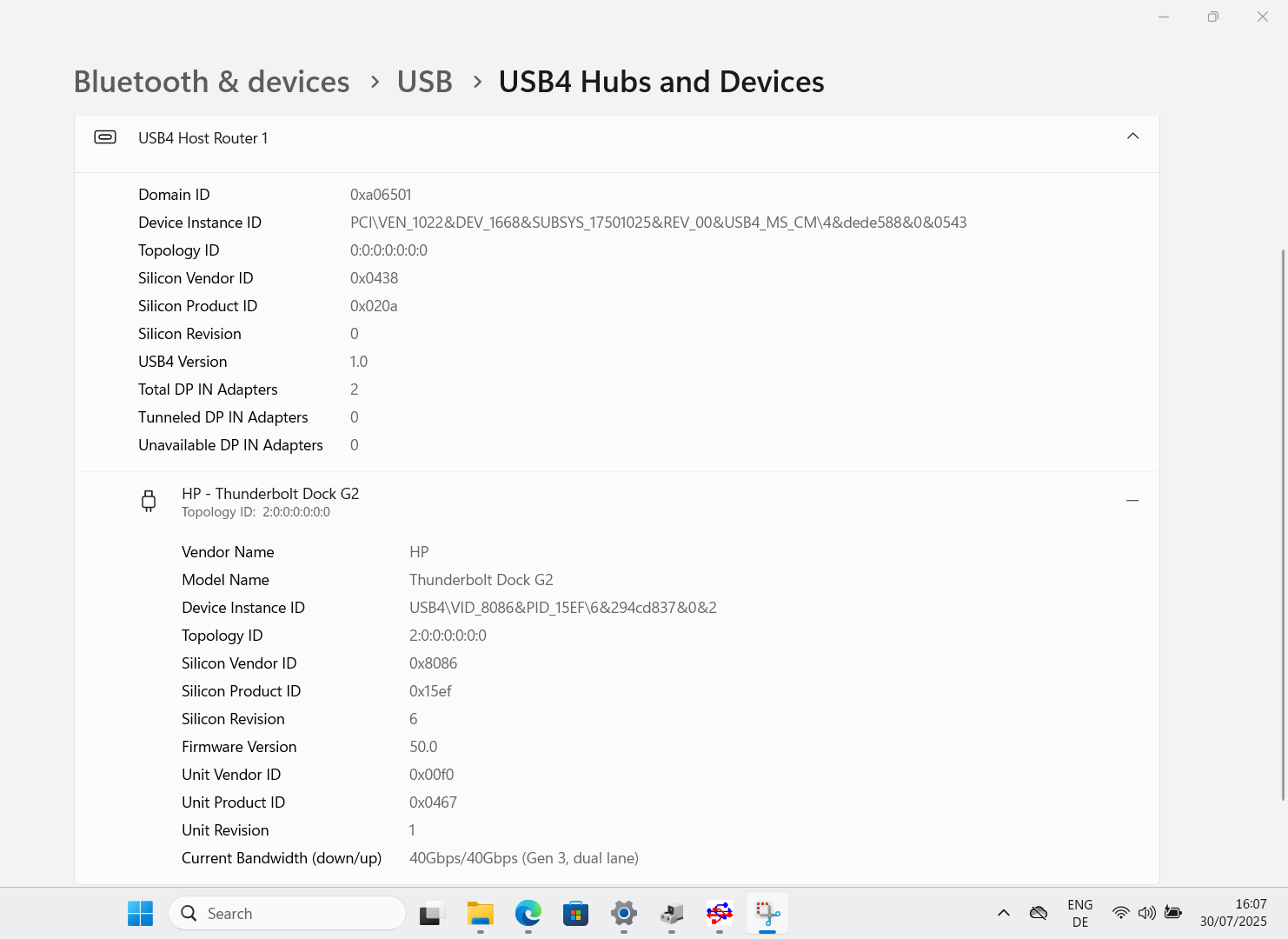
First in Windows there is limited reporting regarding Thunderbolt, I only found 1 place in settings where it shows the link speed is 40GBps,
see below screenshot:
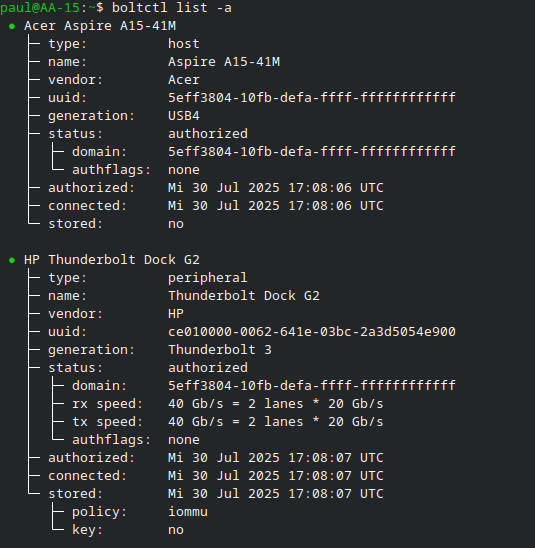
In Linux there are way more commands to analyze the capabilities of TB, so here are some screenshots and explanations:
In the following screenshot we see pretty much the same as in Windows that the dock is correctly identified and that we have 40GBps link speed:
In the next screenshot we see the in Thunderbolt controller name: Advanced Micro Devices, Inc. [AMD] Pink Sardine USB4/Thunderbolt NHI controller
Which is good to know that the internal identification shows that it is in fact a USB4/TB controller, so it should in fact support the capabilities of Thunderbolt 3 if not also 4.

Personally I just bought an old HP Thunderbolt G2 dock, for 50€, and it is supported and works without issues I would guess that other TB3 docks should also work without issue, but YMMV.
I did not yet have time and the resources to test a TB4 dock or an eGPU, but some others reported in other forums that this controller should be able to handle an eGPU albeit with some issues as mentioned in this forum thread:
I just hope that this will help other in the future and that manufacturers more clearly state what features there USB4 implemenation suuport.😑
 paulo88
Re: Can I use a 2TB PCle 4 nvme ssd on my laptop? #anv15-51 789J
Hi tfield12354
- This laptop includes two PCIe M.2 SSD slots, both supporting Gen 4 NVMe drives up to 4TB capacity.
- For optimal performance, reliability, and thermal efficiency, the Samsung 990 EVO Plus Gen4 NVMe SSD is a solid choice.
- It runs cool under load, delivers fast sequential speeds, and maintains consistent performance across workloads.
 Puraw
Puraw





