





Best Of
Re: System usage mode not changing and silent mode isn't silent. Fn + F doesn't change the mode. It's an Acer Swift Go 14.
I have the same problem, also from April. I uninstalled and re install and now is worst. I used the app to change the screen modes.
 Andres77
Re: System usage mode not changing and silent mode isn't silent. Fn + F doesn't change the mode. It's an Acer Swift Go 14.
"look for services like acSvc or acerAgentSvc."
Not acSvc. I found accSvc.exe (ACC service). Restart it did not help.
I can not find acerAgentSvc.
 Ming2_He
System usage mode not changing and silent mode isn't silent. Fn + F doesn't change the mode. It's an Acer Swift Go 14.
I can't change how loud my fan is, it's stuck on silent mode, but the fan is not as quiet as it normally is. My laptop is also running quite hot. I don't have anything running. Fn + F doesn't change the mode and when I click a different option on AcerSense nothing happens. This has not happened before. It's an Acer Swift Go 14 I got it in August.
[Edited the thread to add model number to the title and issue detail]
 Danieljf
Re: Acer Swift Go 14 AI - The internal speakers have stopped producing sound even though the RealtekAudiodriver6.0.9826.1(ALC245) is installed correctly.
Hello @Saijin_4,
- It sounds like you’ve ruled out nearly every software cause. Since Bluetooth works but internal speakers do not, the issue is likely localized to the physical speaker hardware or a specific hardware-level state that standard driver reinstalls don't clear.
- Before concluding it is a permanent hardware failure, try these advanced hardware-reset and settings-specific steps tailored for the Acer Swift Go 14:
- 1. Perform a Battery Reset (Hardware Refresh)
- This can resolve "stuck" hardware states that a simple restart won't fix.
- The Pinhole Method: Look for a small pinhole with a battery icon on the bottom of your laptop. Unplug the AC adapter, then use a paperclip to press and hold the button inside that hole for 60 seconds.
- The Power Button Method: If there is no pinhole, unplug the power and hold the Power Button for 30–60 seconds. Plug it back in and test.
- 2. Disable Audio Enhancements
- Sometimes AI-optimized drivers have "enhancements" that crash the output stream entirely while showing a healthy driver status.
- Go to Settings > System > Sound.
- Click on your Internal Speakers to open their properties.
- Look for Audio enhancements and set the dropdown to Off.
- Ensure Spatial sound is also turned Off.
- 3. Check for "Optional" Intel/Audio Updates
- On newer "AI" models, the Realtek driver often relies on specific Intel components (like Intel Smart Sound Technology) that Windows Update hides.
- Go to Settings > Windows Update > Advanced options > Optional updates.
- Look for any Intel or Realtek firmware or driver updates and install them.
- 4. Physical Connection Check (If Warranty Allows)
- If the above fails, there is a known possibility of a loose speaker connector on the motherboard.
- The internal speakers on Swift Go 14 connect via a small 4-pin or 2-pin cable.
- If you are comfortable opening the back cover (and it doesn't void your local warranty), check that the speaker cable is firmly seated in its socket.
- Summary of Likelihood
|
|
|
|---|---|---|
|
|
|
|
|
|
|
|
|
- If the Battery Reset (Step 1) doesn't fix it, and you've confirmed no "Enhancements" are active, you should contact Acer Support for a potential speaker replacement.
If you feel my above comment answers your question, then click on 'Yes'! Click on "Like" if you find my answer is useful in any way.
 Murav
Murav
Re: AcerSense “System Usage Mode” Not Working / MUI Error – Anyone Found a Permanent Fix?
The MUI_UsageMode_Intro_undefined error and unresponsive performance modes in AcerSense are known issues. They are typically caused by a mismatch between the Microsoft Store version of the app and the proprietary hardware drivers provided by Acer.
Permanent Solution: Clean Reinstall & Update Block
The most effective fix is to replace the generic Store version with the model-specific driver from Acer's official support site and then prevent Windows from overriding it.
- Uninstall Current Components: Go to Settings > Apps > Installed Apps and uninstall both AcerSense and Acer Configuration.
- Clean Registry (Optional but Recommended): Some users recommend using a tool like Revo Uninstaller to remove leftover registry files that may corrupt a new installation.
- Download Official Version: Visit the Acer Support Website, enter your SNID, and download the AcerSense version listed under the Application tab.
- Install as Administrator: Extract the ZIP file, right-click the setup.exe (or similar), and select Run as Administrator.
- Restart Before Launching: Do not open the app immediately after installation. Restart your laptop first to allow background services to register properly.
- Block Automatic Store Updates: To stop it from breaking again, open the Microsoft Store, click your profile icon, go to Settings, and turn off App updates.
Is this caused by Windows Updates?
Yes, Windows Update frequently pushes newer "generic" versions of Acer components from the Microsoft Store that lack the specific UI/resource files for your exact hardware, leading to the "undefined" error.
If the buttons still don't respond, ensure the following services are Running in the Services app (services.msc):
- Acer Quick Access Service
- Acer Service Component
- acSvc or acerAgentSvc (Right-click and select Restart if they are already running).
- BIOS Update: Check for a BIOS update on the Acer support page; these often include critical fixes for software-to-hardware communication bugs.
Click on "Yes" if it answers your question and Click on "Like" if you find my answer useful
 Diya1811
Re: AN517-54-582A - nitro sense topped working correctly. I uninstalled it, but I can't find a link to a new driver. is there any alternate app?
Acer may bring them back soon with some improvement. As for now, use below to download and install NitroSense:

Re: I can't change the fan setting in Swift and Spin laptop, how to fix it?
This issue where fan settings are greyed out until a restart is typically caused by a communication failure between the AcerSense software and the laptop's embedded controller, often exacerbated by the Windows Fast Startup feature which prevents drivers from fully resetting.
To fix this safely, you should first disable Fast Startup by going to Control Panel, selecting Power Options, clicking "Choose what the power buttons do," and unchecking the Fast Startup box so that every shutdown performs a clean refresh of your hardware drivers.
Next, ensure you are not using the generic Microsoft Store version of the app; instead, go to the Acer Support website, enter your SNID, and download the specific AcerSense application version intended for your model, as this includes the necessary background services like acSvc that are required to toggle fan speeds.
If the software still fails to respond, you can manually restart these services in the Task Manager under the Services tab, or perform a battery pinhole reset by holding a paperclip in the small hole on the bottom of the laptop for 15 seconds while it is unplugged to clear any static electricity from the controller chip.
Ensuring your BIOS is updated to the latest version is also critical, as Acer frequently releases firmware patches to fix "frozen" fan controls on the Swift and Spin series.
Click on "Yes" if it answers your question and Click on "Like" if you find my answer useful
Diya1811
Re: I can't change the fan setting in Swift and Spin laptop, how to fix it?
To fix fan control issues on your Acer Swift or Spin laptop, you should first try the official software solutions, as these laptops typically rely on proprietary Acer utilities to manage thermal profiles.
1. Update or Reinstall Acer Proprietary Software
Most fan control on recent Acer models is handled through AcerSense or Acer Quick Access.
Reinstall AcerSense: If the fan modes (Silent, Normal, Performance) are greyed out or non-responsive, download the latest version directly from the Acer Support Website.
Tip: Avoid downloading AcerSense from the Microsoft Store, as some users report it can be buggy or lack specific features compared to the version on the official support page.
Acer Quick Access: Check if CoolBoost is available in this app. If the shortcut (typically Fn + F) isn't working, reinstalling Quick Access often restores this functionality.
2. Update BIOS
Acer frequently releases BIOS updates to fix "thermal policy" bugs that can break fan control.
Visit the Acer Support Website, enter your SNID or Serial Number, and download the latest BIOS/Firmware update.
Warning: Ensure your laptop is plugged into power during a BIOS update to avoid system failure.
3. Adjust Windows Power Settings
If software-level fan control is still locked, you can influence fan behavior by changing how Windows manages the processor.
System Cooling Policy: Go to Control Panel > Hardware and Sound > Power Options > Change plan settings > Change advanced power settings. Under Processor power management, set the System cooling policy to Active to ensure fans ramp up before the CPU throttles.
Limit Max Processor State: To keep fans quiet, change the Maximum processor state to 97% or 98%. This prevents the CPU from boosting unnecessarily, which often causes the fans to spike.
----------------------------------------------------------------------------------
If this comment answers your question, Please "Click on Yes" and then Answered.
 Axxo
Axxo
Re: I can't change the fan setting in Swift and Spin laptop, how to fix it?
Hi polarit14
Install AcerSense version 5.0. 2064 from Acer Support for your Swift module, I have that version running on my SF14-51T (see screenshot) and the 3 fan control modes are working perfectly.
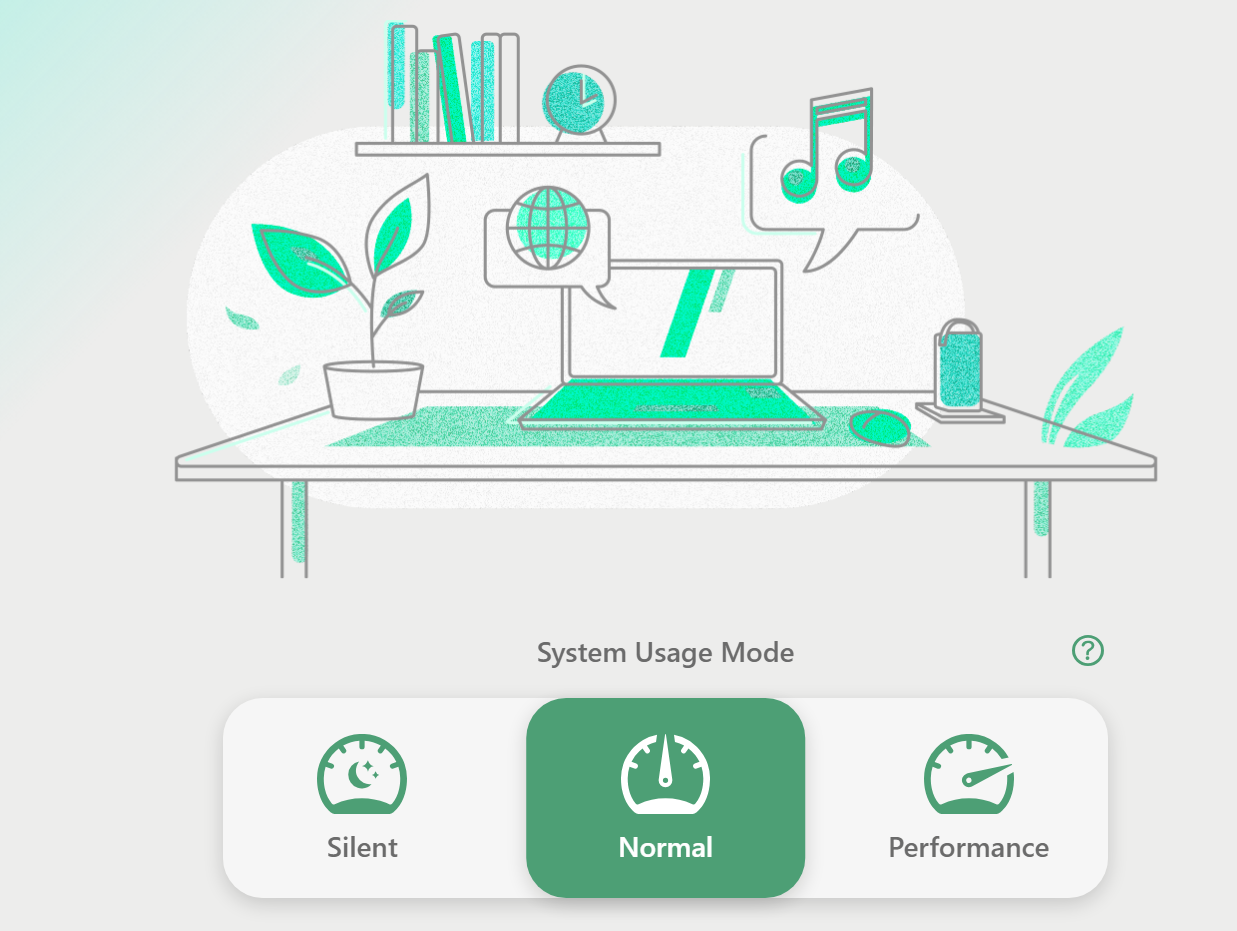
Don't install AcerSense from the Microsoft Store.
 Puraw
Puraw
Re: Sf16-51T - Acer Sense not allowing changing of System Usage Mode
We are users on these forums just like you. Not employees or contractors. So we have no clues as to when or even if stuff like this will be addressed. Only suggestions on how to help other users temporarily work around these software and driver bugs. Sorry.
 JackE
JackE





