





Best Of
Re: Does the Iconia One 10 B3 A30 have Corning Gorilla Glass 4?
Yes, i see it online as well. Front cover glass that is marketed as Corning Gorilla Glass 4, which is why you see it described as “scratch‑resistant” online.
It means the Gorilla Glass 4 on the display is designed to withstand light scratches from everyday use (keys, coins, sand, etc.) better than normal glass, but it is not scratch‑proof and can still get fine marks or deeper scratches if dragged across hard or gritty surfaces. Remember that Gorilla Glass is not unbreakable or scratch‑proof, it’s just tougher glass with better resistance than normal.
In practice, it’s still wise to pair it with a tempered‑glass screen protector or a case to avoid visible scratches over time.

Re: How do i turn off or turn down the lights on the predator galea 550 headset without acersense?
Look at the Predator Galea 550 manual HERE as its only in Ukrainian so you will need to translate its content to English like I did below for the Device Overview, if you are not Ukrainian. Good luck.
Below is the only instructions that the manual has for these headphones
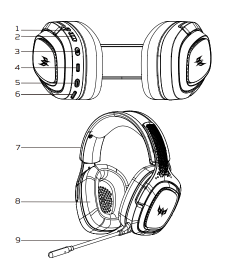
Device Overview
1. Power button with indicator
2. Volume up/down
3. Short press — Mute/unmute button and Long press —- Switch between Adapter/Bluetooth modes (Galea 550 only)
4. USB-C charging port
5. Switch between Gaming/Normal modes
6. Microphone port
7. Adjustable headband
8. Fabric ear cushion
9. Detachable microphone with indicator
If this answers your question and solved your query please "Click on Yes" or "Click on Like" if you find my answer useful👍

Re: Cant use USB-C port to connect to external monitor Aspire 7, A715-59G
Hi Horsley
If your monitor only has an HDMI port (no DisplayPort), you’ll need a DP→HDMI cable to connect it to the laptop’s USB‑C port. Example: Amazon.com : hdmi to displayport cable This type of cable converts the DisplayPort signal from the USB‑C port into HDMI so the monitor can display properly.
If your monitor also has a DisplayPort input and you’re using a DP cable, make sure the monitor’s OSD (On‑Screen Display) input setting is set to DP and not HDMI. Otherwise, the monitor won’t detect the signal from the laptop’s USB‑C/DP output.
 Puraw
Puraw
Re: Favorite features about Chromebooks
Welcome aboard. As an old member of this community, I might get more response to a question like yours by asking 'what are some of your favorite unwanted features'. One of my favorite unwanted features is a soldered emmc. I might even pay a bit extra for budget chromebook with only an m.2 socket and a cheap little replaceable half-length SSD. 🙂
 JackE
JackE
Re: AcerSense not displaying system info on Aspire A314-36M, want to activate optimize charging
Hi Remiva,
To activate Optimized Battery Charging on your Acer Aspire A314-36M, the standard path is to open AcerSense, navigate to Personal Settings, and toggle the switch for Optimized Battery Charging to ON.
If AcerSense is not displaying system info or battery options, it is likely due to missing background services or outdated drivers.
Fix AcerSense Not Displaying Info
Follow these steps to restore the missing system information and battery controls:
Restart Background Services: Open Task Manager (Ctrl + Shift + Esc), go to the Services tab, find acSvc or acerAgentSvc, right-click them, and select Restart.
Update Critical Drivers: The "Checkup" and "Personal Settings" menus often fail if the Chipset, Serial IO, and Intel Management Engine drivers are outdated. Download the latest versions for your specific SNID from the Acer Support Website.
Clean Reinstall AcerSense:-
Uninstall AcerSense via Settings > Apps > Installed Apps.
Restart your laptop.
Download the official AcerSense ZIP from the Acer Support site.
Right-click the setup file and select Run as Administrator.
Restart again before opening the app to ensure the AcerSenseService process initializes correctly.
Disable Fast Startup: This feature can sometimes block hardware-linked apps like AcerSense from initializing correctly. Disable it in Control Panel > Power Options > Choose what power buttons do.
How to Activate Optimized Charging
Once the app is functioning correctly:-
Open AcerSense (via the Start menu or dedicated keyboard key).
Click the hamburger menu (three lines) in the top-left and select Home or Settings.
Go to Personal Settings > Battery & USB Charging.
Set the toggle for Optimized Battery Charging to ON to limit the charge to 80%.
----------------------------------------------------------------------------------
If this comment answers your question, Please "Click on Yes" and then Answered.
 Axxo
Axxo
Re: Acer X115H projector. I would like a solution to this problem please.
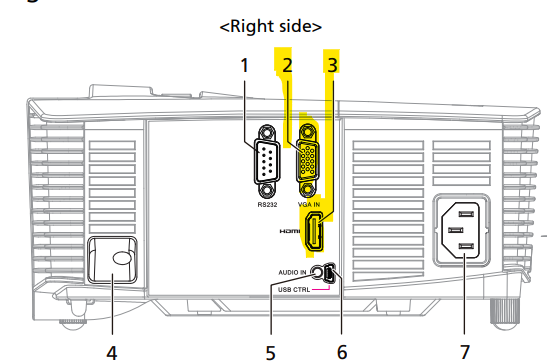
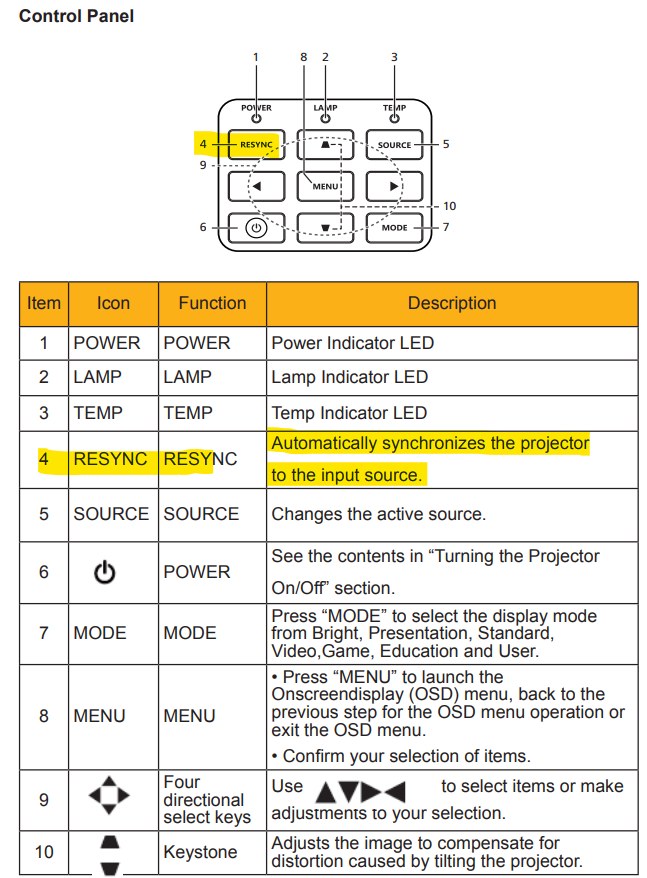
Your X115H projectors RESYNC Light being on > means that the "Automatically synchronizes the projector to the input source" is faulty like its either VGA cable or HDMI cable that you are connecting this projector to your laptop or desktop. If you are connecting with a HDMI cable, make sure that its a HDMI 1.4a type cable, as using any other cable could cause this fault. Otherwise and if that doesn't work, you will need to take this projector to Acer tech support in your country.
Check those cables as the projector is not connected to your laptop or desktop properly. See the X115H projectors manual and see the correct connection guide that Acer has a very extensive guide on. Good luck and hope this helps you out further.
If this answers your question and solved your query please "Click on Yes" or "Click on Like" if you find my answer useful👍
Re: my laptop's s/n and SNID are missing in the acer database
I am using acer aspire3 2023 model I used to download the drivers from the website but when I tried this time I faced the same problem of SNID not found
 RedblacK
Re: Predator Helios 300 PH 315-54-731M: Seeking Tips for Replacing and Maintaining Battery life
Hello Jerome
Keeping the laptop connected to AC power continuously does not shorten the life of a lithium‑ion battery. Modern batteries have an integrated circuit that cuts off charging once capacity reaches ~99.9%, so no overheating or damage occurs.
- A good quality battery lasts 4–5 years (≈1,000 full charge cycles) regardless of usage.
- Avoid very short charges and especially draining to 0% — those stress the cells most.
- Forget about “Calibration,” “Optimization,” or “80% charge limiting” features; they don’t improve health and can interfere with Windows ACPI drivers.
DIY replacement tips: Most users replace batteries themselves. The motherboard plug is delicate — don’t use pliers or force. Wiggle the corners gently with fingernails or a plastic fob. Once installed, perform one full charge cycle to register capacity (only needed after replacement or Windows reinstall).
Windows power management:
- Disable Fast Startup.
- Use the Balanced power plan and reset advanced settings to defaults.
- In Settings > System > Power & battery > Power mode, select Best Power Efficiency.
- Keep BIOS updated and install Windows 11 version 25H2, build 26200.8246.
One Full Charge Cycle procedure:
- Charge until the amber LED turns blue, wait 10 minutes, verify 100% in the taskbar meter.
- Unplug adapter, work until the laptop shuts down on its own (~5% left). Don’t press the power button; just close the lid.
- Plug in adapter, recharge until amber LED turns blue (~1 hour), wait 10 minutes.
- Boot into Windows and confirm the meter reads 100%.
That’s it — no repeated “calibration” is required. What matters most is battery quality and natural cycle count.
.
Puraw





